
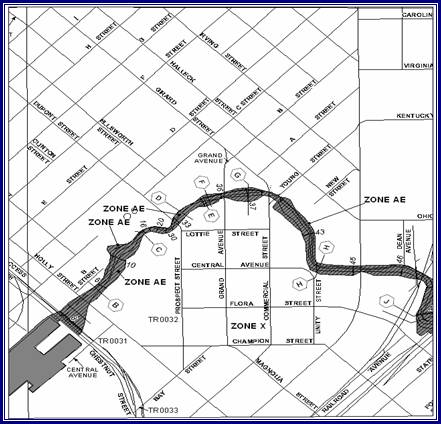
What are Label Panel and Label-Edit?
Quick Reference Guide
Label Panel Toolbar
Label Edit Toolbar
Tool Controls
Label Panel Toolbar
 Label Panel
Label-Edit Toolbar Tools
 Display Label Panel Output
 Change Label Status
 Change Label Properties
 Abbreviate Label
 Reset Label
 Highlight Feature
 Restore Suppressed Label
 Suppress Label
 Compose Label
 Decompose Label
 Make Label Horizontal
 Stack Label
 Duplicate Label
 Reposition Label
 Create eader
 Generate Index File
 Mask
Mask
 Label-Edit Options
 Flip
Label
Flip
Label
Trouble – Shooting
Contacts
Label Panel and Label-Edit are used in conjunction with one another. Automated text generation and placement for FIRM panels will be done by Label Panel, which will account for 80% to 90% of your annotation work. The labeling is in accordance with FEMA ’s FIRM standards, which are described in FEMA’s
Once you have completed the batch annotation of a panel, you can use Label-Edit to modify label placement, orientation, and properties. Label-Edit also allows you to add leader lines where they are necessary.

|
| Label Panel toolbar |

|
| Label-Edit toolbar |
The following is a quick reference guide to all of the components of Label Panel and Label-Edit.


|
Label Panel | Create annotation for the selected panel(s) |
 |
Display Label EZ Output | This tool has been disabled |
|
|
Change Label Status | Change status to prevent label modification if batch annotation is re-done |
|
|
Change Label Properties | Convert serif to sans serif font |
 |
Abbreviate Label | Abbreviate a selected word |
|
|
Reset Label | Convert an abbreviated word to its long form |
|
|
Highlight Feature | Highlight a feature label or a feature |
|
|
Restore Suppressed Text | Add suppressed labels to the map |
|
|
Suppress Label | Remove a label from the panel |
|
|
Compose Label | Convert a multi-part label into one unit |
|
|
Decompose Label | Break a single-unit label into multiple text boxes |
|
|
Make Label Horizontal | Make a selected label horizontal |
|
|
Stack Label | Stack a label in a specified number of rows |
|
|
Duplicate Label | Duplicate an existing label |
|
|
Reposition Label | Move a label along a curved feature to a new position |
|
|
Create Leader | Add a leader line |
|
|
Generate Index File | This tool has been disabled. |
|
|
Mask | This tool has been disabled. |
 |
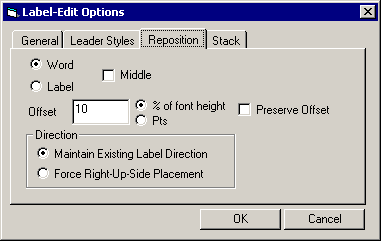
Label-Edit Options | Modify the options for stacking, repositioning, and leaders |
 |
Flip Label | Invert selected text |
This section describes the function of each of the tools available on the Label Panel and Label-Edit toolbars and provides instructions for their use.
There is one tool on the Label Panel toolbar. It allows you to select the panel(s) to be labeled and to launch the batch annotation process. Label Panel generates annotation for each FIRM panel you select, at the scale of the panel(s) selected. There are three annotation layers in the database: 24000, 12000, and 6000 scale.
Label Panel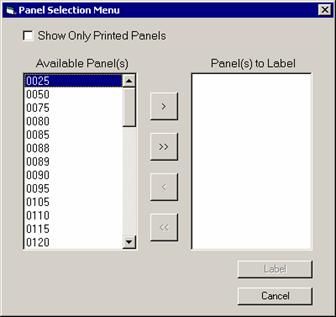
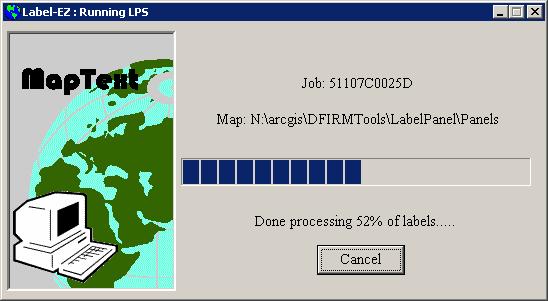

Note: You will not see the annotation once Label Panel has completed the batch process. You must launch a workflow step in which panel annotation is edited. Run Map Production Pro and preview the panel annotated to see the labels and leaders.
The Label-Edit tools allow you to adjust the placement of labels, add leader lines, and modify label properties. In order to view the annotation, you must launch a child job for the parent step involving editing of annotation. Any modification of the annotation, except applying a mask, requires that you be in an edit session.
Keep in mind that if you find errors in the data, you must make edits to the dataset and re-run the batch annotation for the panel on which you are working. Correcting annotation will not change the attribute value in the database.
 Display Label Panel Output
This tool has been disabled, since the annotation for each job is loaded automatically when a step involving editing of annotation is launched.
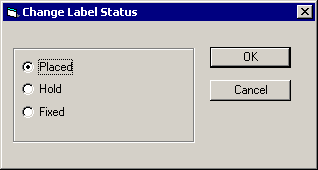
 Change Label Status
After you generate batch annotation with Label Panel, Label-Edit allows you to edit text placement and labels as necessary. Unmodified labels have a status of “placed” whereas those that have been moved or edited have a status of “fixed. ” These classifications are useful in the event you need to re-run Label Panel. The “fixed” labels will not be replaced, nor will additional annotation be placed for those features that have fixed labels. The “hold” status indicates that a label has been modified but can be moved by when batch annotation is repeated, if necessary.
 Change Label Properties
This tool will allow you to modify a label’s text or font properties.
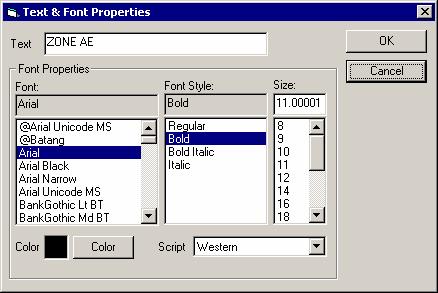
Note: You should ensure that any changes you make to the label properties will conform to the specifications in FEMA ’s April 2003 Guidelines and Specifications for Flood Hazard Mapping Partners Appendix K: Format and Specifications for Flood Insurance Rate Maps.
 Abbreviate Label
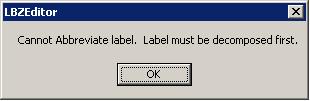
Use this tool to abbreviate a single word that appears in a label.
 Reset Label
Use this tool to reverse the effect of the Abbreviate Label or the Stack Label tools on a word.
 Highlight Feature
You can highlight a feature by selecting its label and vice versa.
Note: If you select a feature for which the label has been suppressed, you will be prompted to restore it.
 Restore Suppressed Label
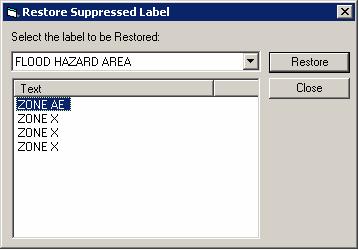
Label Panel may suppress placement of labels during batch annotation due to lack of space or conflicts in label placement that require a user’s attention. It is important that you run this command in order to determine which labels were not placed and to determine which need to be added to the panel.
 Suppress Label
Remove labels from the panel and add them to the “suppressed label” layer (e.g., DFIRM.Anno_12000_SUP). You can always replace these labels by using the Restore Suppressed Text tool.
Note: You cannot suppress a word or a portion of a label only. Also, any leader lines associated with a suppressed label will be deleted and must be re-created if the label is restored.
 Compose Label
Join a multi-part label into a single unit.
 Decompose Label
Break a label with several words into separate text objects.
 Make Label Horizontal
Modify a label so that it is horizontal.
 Stack Label
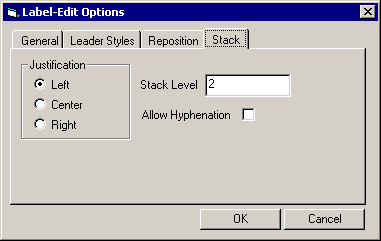
To fit long labels in narrow spaces or to fill an area, use this tool to create multi-line labels.
Note: The label will be broken-up between words for stacking, unless you have selected the “Allow Hyphenation” option on the Stack Options tab and selected the Hyphenation Dictionary to be used on the General Options tab.
 Duplicate Label
Duplicate an existing label.
 Reposition Label
Adjust labels that follow curved line features using this tool.
Note: If you have set the Options to select a single word, rather than an entire label, only the word will be repositioned. You can change your options during the edit session, as necessary.
 Create Leader
Customize the leader lines created.
Note: You cannot change the leader properties once you have added a leader to the map.
 Generate Index File
This tool has been disabled.
 Mask
MaskThis tool has been disabled.
 Label-Edit Options
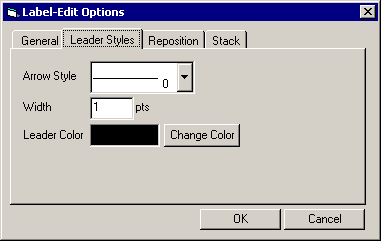
When you start your label editing session, you can set your options for features such as arrow styles, repositioning, and stacking.
 Flip Label
Reverse the reading direction of a label.
Problem: The following error message pops up when I try to change the abbreviation or hyphenation dictionary in the Label Edit Options settings.

Solution: Users cannot change the dictionaries used by Label-Edit.
Problem: When using the Annotation Tools and the Label-Edit tools, sometimes the Label-Edit tool becomes greyed out (inactive).
Solution: Stop and re-start the editing session. This will reactivate the Label-Edit tools.
Problem: In the previous step, I labeled a panel. I followed the workflow process and advanced to the step where I am editing the annotation. I just launched a new child job for the annotation editing step to see the results of the labeling process. I see “8000” all over my panel. None of the features in the panel have an attribute value of “8000.”
Solution: The “8000” is a marker to indicate that an important field has not been populated. For instance if you have not populated the “Name Type” field in the Transportation layer, the “8000” marker will appear along your road features. In the child job, populate the empty attribute fields using the GeoPop toolbar tools, and re-label the panel. Close the child job and advance it to a “reconcile and post” step. Reconcile and post the edits that you made to the parent job. Close the child job. Once you see the JTX interface, create a new child job for the parent to which you reconciled and posted changes. If you still see “8000” markers, you should repeat this process.
If you need assistance with this tool, please contact the representative at your local RMC.
| NAME | ROLE | PHONE | |
|---|---|---|---|
| REGION I | |||
| Brent McCarthy | Lead | Brent.McCarthy@mapmodteam.com | (336) 240-7339 |
| Jeffrey Burm | GIS/Mapping | JeffBurm@mapmodteam.com | (517) 482-4930 x4752 |
| REGION II | |||
| Rich Cassin | Operations Manager | Rich.Cassin@mapmodteam.com | (914) 333-5366 |
| Michael Crino | GIS/Mapping | mcrino@mbakercorp.com | (718) 482-9945 |
| REGION III | |||
| Mike Conaboy | Operations Manager | mconaboy@mbakercorp.com | (609) 734-7922 |
| Lee Brancheau | Senior GIS Manager | lbrancheau@mbakercorp.com | (609) 734-7912 |
| REGION IV | |||
| Stephen King | Operations Manager | Stephen.King@mapmodteam.com | (678) 459-1010 |
| Kagan Kuyu | GIS/Mapping | Kagan.Kuyu@mapmodteam.com | (678) 459-1041 |
| REGION V | |||
| Sujata Banerjee | Business Manager | Sujata.Banerjee@mapmodteam.com | (312) 575-3902 |
| Pam Coye | GIS/Mapping | Pam.Coye@mapmodteam.com | (312) 575-3913 |
| REGION VI | |||
| Dan Hoecker | Operations Manager | Dan.Hoecker@mapmodteam.com | (940) 783-4155 |
| Phil Nguyen | GIS/Mapping | pxnguyen@mbakercorp.com | (940) 783-4121 |
| REGION VII | |||
| Matthew Koch | Operations Manager | mkoch@watershedconcepts.com | (816) 502-9420 x4952 |
| Rod Odom | GIS/Mapping | rodom@watershedconcepts.com | (816) 502-9420 x4957 |
| REGION VIII | |||
| David Jula | Operations Manager | David.Jula@mapmodteam.com | (720) 514-1100 |
| Mike Garner | GIS/Mapping | Mike.Garner@mapmodteam.com | (720) 514-1105 |
| REGION IX | |||
| Travis Clark | Business Manager | Travis.Clark@mapmodteam.com | (510) 879-0950 |
| Michael Skowronek | GIS/Mapping | Michael.Skowronek@mapmodteam.com | (510) 879-0958 |
| REGION X | |||
| Michael Morgan | Business Manager | Mike.Morgan@mapmodteam.com | (206) 344-3891 |
| Timothy Witten | GIS/Mapping | wittentd@bv.com | (206) 344-3891 |